How to Change the Sticky Add to Cart Button Position to the Bottom
By default, our app displays the Sticky Add to Cart button at the top of the screen. While there’s currently no built-in setting to change its position, you can customize it manually by following the steps below.
Step-by-Step Instructions
Step 1: Access Your Theme Code
- From your Shopify admin, go to Sales channels → Online Store → Themes.
- Find the theme you want to edit, click the three dots (•••), then select Edit code.
Step 2: Create a Custom Snippet
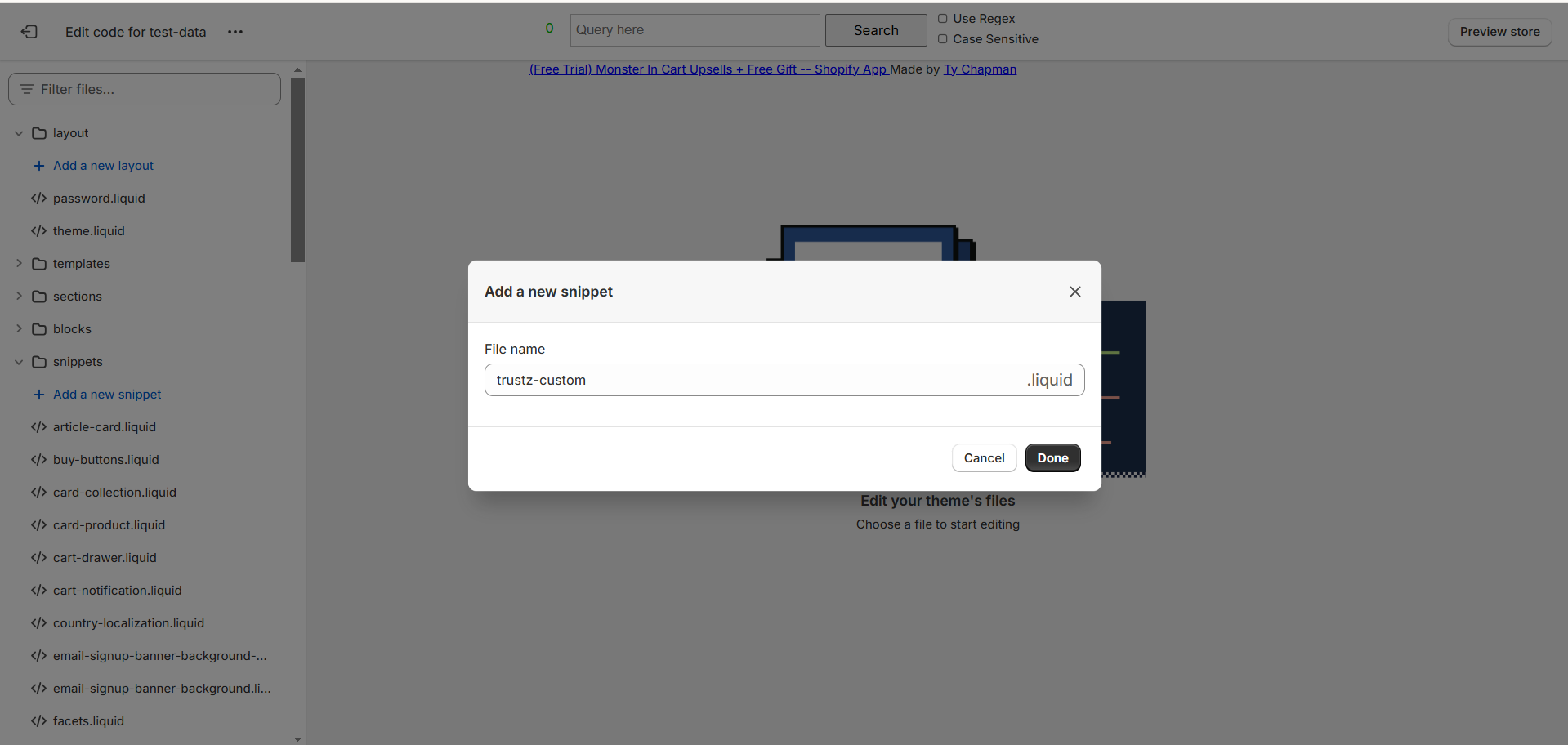
- In the left-hand sidebar, scroll to the Snippets folder.
- Click Add a new snippet.
- Name the file: trustz-custom and click Done.
Step 3: Add Your Custom CSS Code
Open the newly created trustz-custom.liquid file and paste in the following code:
<style>
  #sticky-add-to-cart.app-embed .sticky-add-to-cart {
    top: unset !important;
    bottom: 0 !important;
  }
</style>
This code moves the sticky Add to Cart bar from the top of the screen to the bottom.
Step 4: Link the Snippet in Your Theme
To make the custom CSS take effect, you need to link your new file in the theme layout.
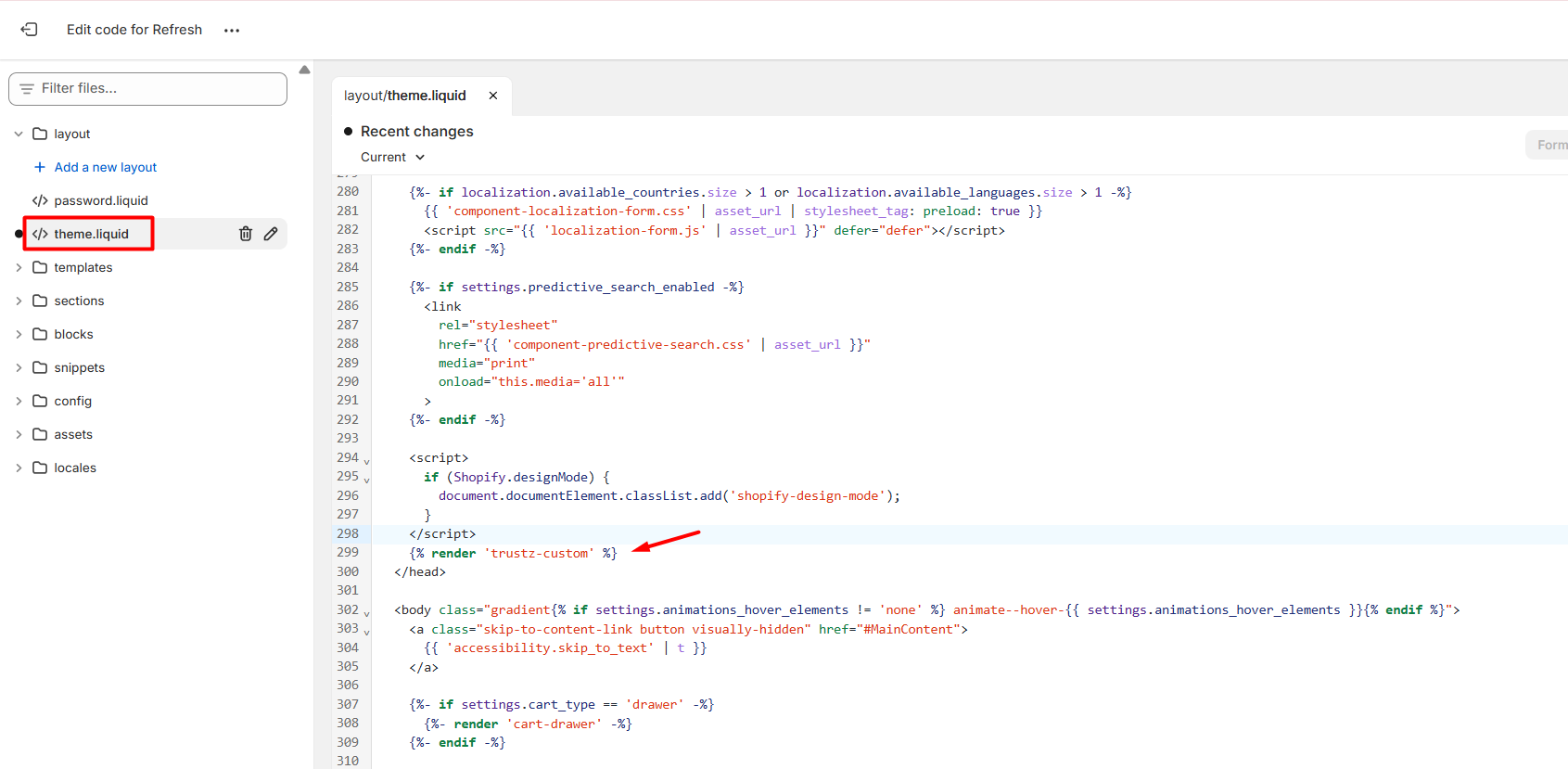
- In the Layout folder, open theme.liquid.
- Find the closing
</head>tag. - Just before it, add the following line:
{% render 'trustz-custom' %}
Pro Tip:
You can also paste the CSS code directly at the end of theme.liquid, but we recommend using a separate snippet file (trustz-custom) to keep things organized and easy to manage.
If you need help with this customization, feel free to contact our support team at [email protected]