How can I change the color of the free shipping bar to match my brand's colors?
Our app is currently using a blue background image to display the Free Shipping Bar. There is no option to change the background color at the moment. If you really want to make a change, please follow the steps below:
Step 1: Navigate to the Theme Editor
- Go to your Shopify admin dashboard.
- Click on Sales Channels → Online Store → Themes.
- Locate the published theme you want to customize.
- Click on the 3 dots menu next to the theme and select Edit Code.
Step 2: Create the truszt-custom file
- In the left-hand sidebar under the Snippets folder, click Add a new snippet. Name the file as truszt-custom and click Done
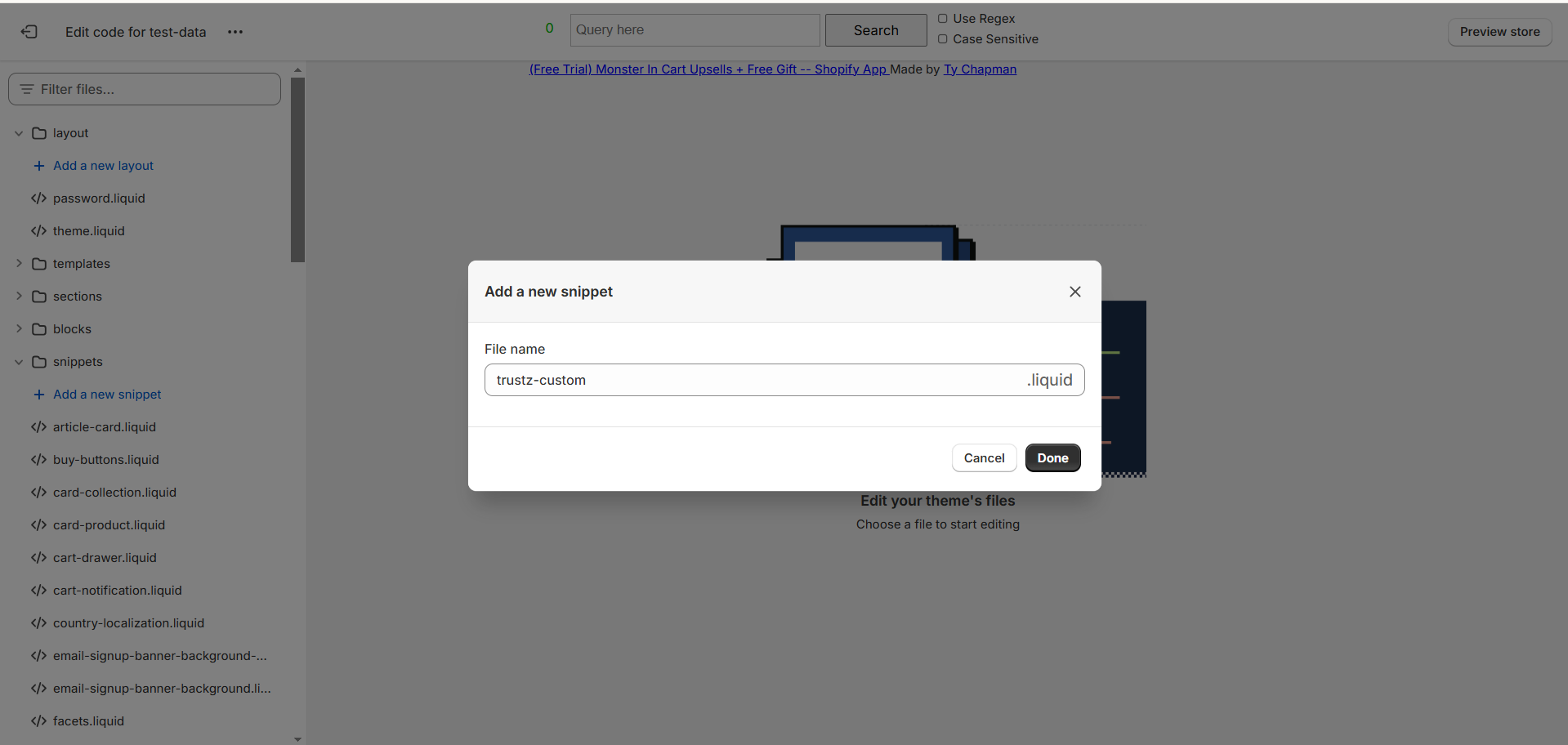
Step 3: Add Your Custom CSS Code
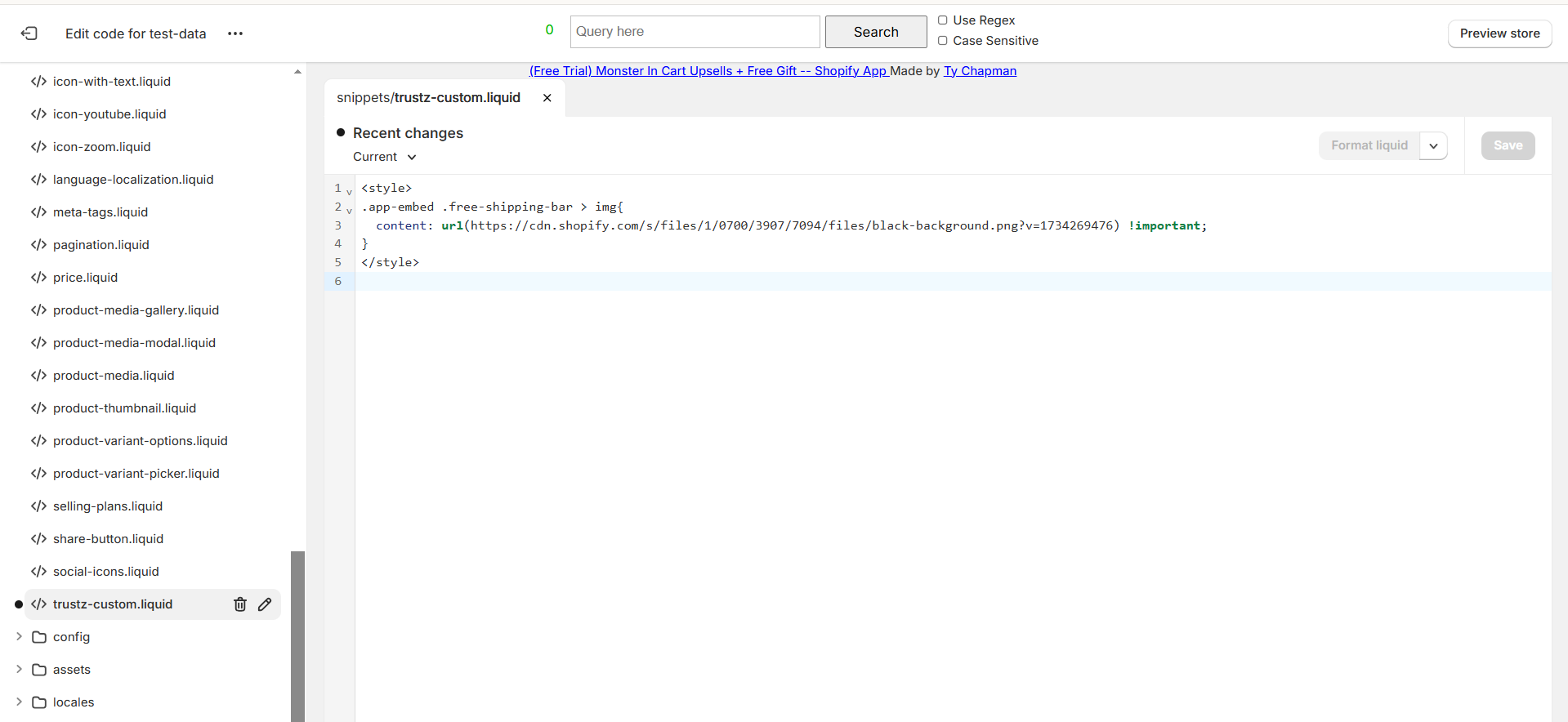
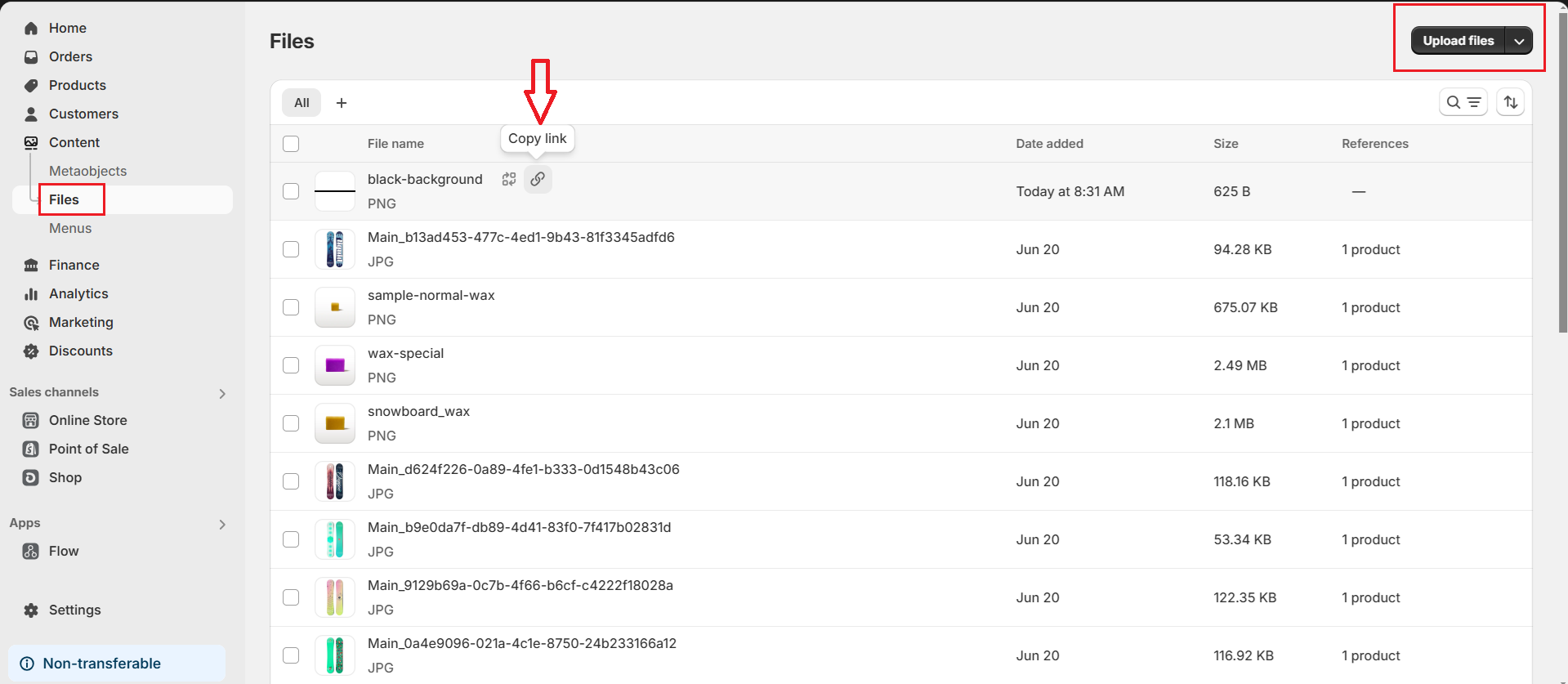
Here is the code to change the background. Please modify the link by uploading an image to Shopify with the background color you desire to Content -> Files and get the link.
<style>
.app-embed .free-shipping-bar > img{
  content: url(https://cdn.shopify.com/s/files/1/0700/3907/7094/files/black-background.png?v=1734269476) !important;
}
</style>
Here is how to get the link of the image you have just uploaded.
Here is the image with a black background for your reference
Step 4: Link the truszt-custom file to your theme
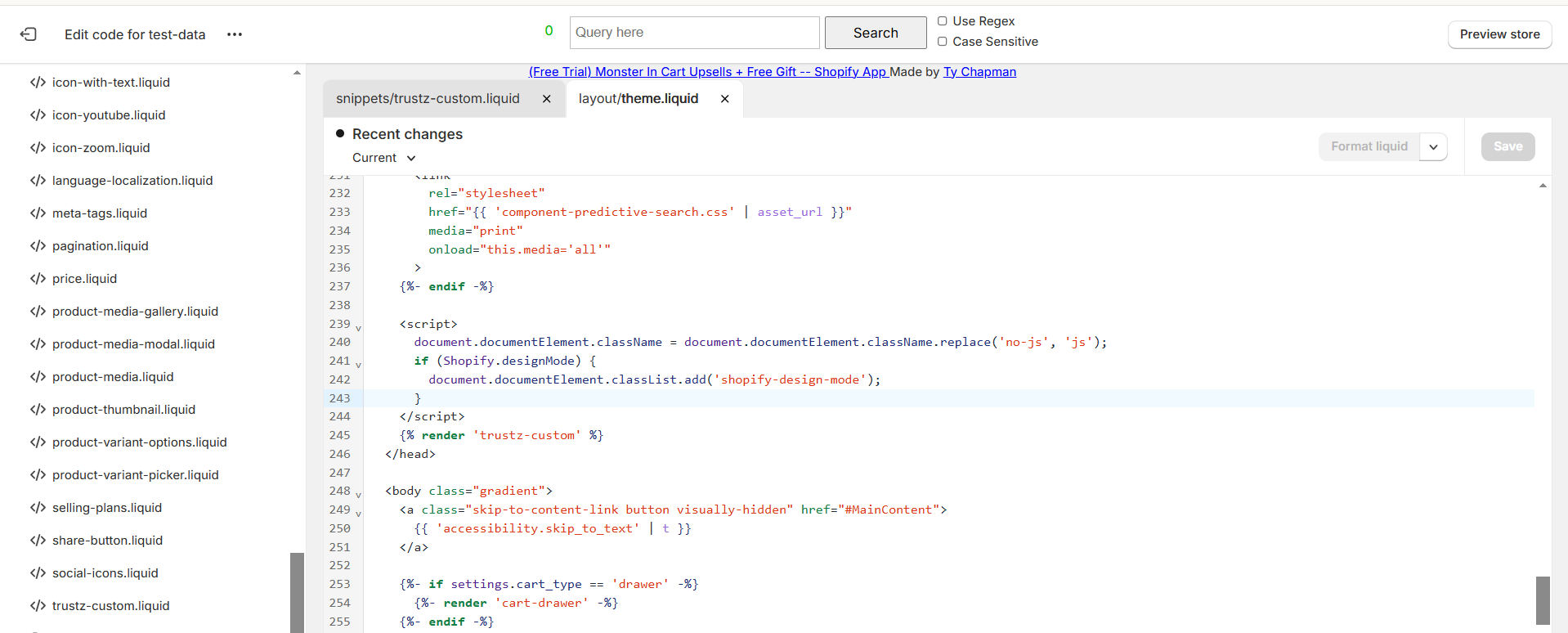
- The final step is to ensure that your custom CSS is applied to your store. You need to link the truszt-custom.liquid file in your theme’s layout.
- In the theme.liquid file, decide where you want the truszt-custom.liquid content to appear (typically, this could be before the
</head>tag, depending on your needs). Add the following line of code where you want to render the created file:
{% render 'truszt-custom' %}
Should you need any further information, please do not hesitate to let us know directly at [email protected].